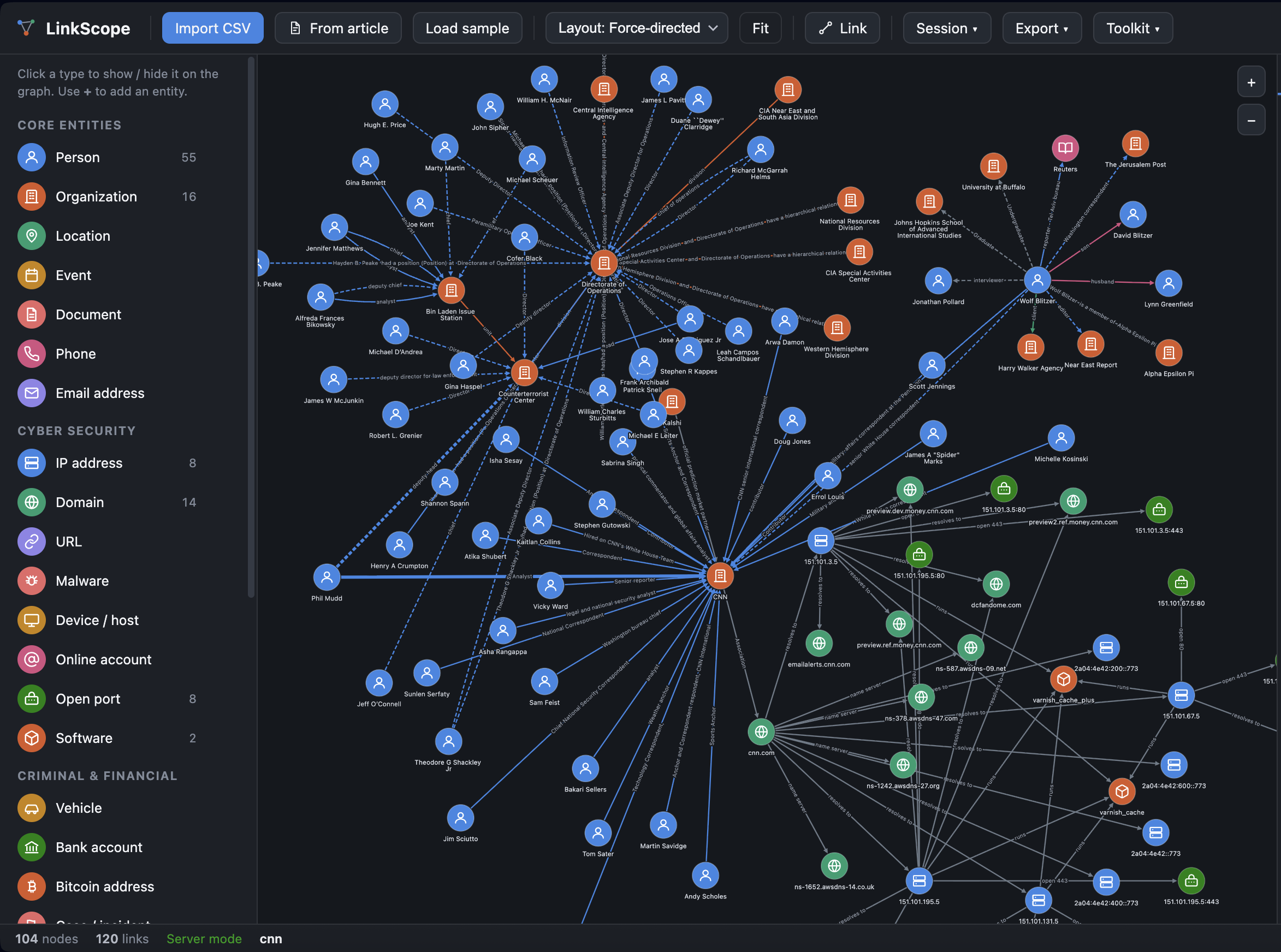
I used to to use Maltego, but it got buggy and expensive. What was once a useful free-tier application, became something buggy to use on Mac and constantly presented an up sale at a very high cost. Today, with the leveraging power of AI tools like Claude, we can build our own graphical OSINT tools on our own, with a simple $20 budget.

The Tool: LinkScape
Above is an early demonstration of the OSINT tool. I’m calling it LinkScape and I’ll walk through the functionality.
I got the idea for the tool after taking an OSINT course and I noticed the speaker was using his own web based tool. It looked like this mind map type of graphical display, but it was very limited. Using Claude, I decided to make my own requirements come to life.
My Requirements
- Auto-create graphs from documents or articles: I want to be able to feed a URL or a document to the tool and from an AI analysis, have it build relationships in a graph.
- Entities: People, organizations, events, vehicles, web domains, IPs, phone numbers, emails, etc. All can be added to the graph and each has their own right-click enrichment options.
- Entity Enrichment: Enrichment being the adding of more data to a node’s details or more relationships to the graph. Data on people, organizations is searchable via LittleSis, recent news… whereas web domains, IPs are enriched via tools like whois and shodan; Emails are looked up via either paid services with API keys provided, or local tools like GHunt; vehicles having options for plane tail number lookups, car plate or VINs looked up and on and on it goes.
- Relationship Enrichment: I wanted to be able to get data between two node relationships and pull them into the graph. For example, what mutal contacts and organizations does Person 1 and Person 2 have in common? I also wanted to be able to click two nodes and ask, “how is Person 1 connected to Person 2 within X degrees of relationships?”
- Summary and Documentation: using an optional 3rd party AI model (Gemini/Claude) I wanted to have the ability to summarize a graph or to ask questions on complex node maps… if there are 300 nodes in the map, and you want to know how Organization 1 sends money to Person 210, then AI could help answer that in context. I also wanted the ability to generate a report summarizing the graph, as well as export the raw data as a png/pdf/csv.
Manual Nodes and Graphs
Data Filtering
In the screenshot at the top of the article, there’s a lot of nodes, with several networks bridged together. This was simply an example delve into a very public organization (CNN). I used CNN simply because they have a lot of data points and it makes for a good demo.
Looking at one network connected, we get Wolf Blitzer, who has their own connections. Clicking his node, we get a filter for just his connections:

We can see in the right side details on the node there are details on all the connections discovered. A summary of these nodes is at the top, offering us a count of outgoing or incoming nodes. Below that the relationships themselves are identified.
Enrichment
Enrichment is when we pull in more data. For a Person Node, it could be personal and public data. For a Website Node it could be their Whois info or anything public in Shodan. Both Nodes and relationships can be enriched.
Person/Organization Node Enrichment
Right-clicking a Person node, we have several contextual menus:

In this case we could do a search using Gemini or a Local LLM, LittleSis, News (using a Brave API key) or Telegram.
We can also chose to find a connection to another entity… clicking that we could pick another figure to look up in LittleSis. Example, how is Wolf Blizer connected to Dan Rather?
Expanding relationships with LittleSis is a basic lookup for any and all relationships publically available.
Server/IP Node Enrichment
If we added a servername, website, IP, we getdifferent right-click contextual menu options:

We still get to lookup information from Gemini, Local LLMs, LittleSis, Telegram, but we have some added options:
- VirusTotal
- Shodan
- Whois
VirusTotal integration
When we run those utilities we enrich a node with public details. For example, adding a new domain, and running the Virustotal gives us a modal of options:

Adding this data into the graph, will give us added detail on the domain node, as well as a new graph of relationships:

Note in the details, we have a linked VT report, which pulls up the public info on this domain.
Whois
Like the VirusTotal enrichment, Whois also gives us various options with public data and identifies what is kept private due to GDPR regulations:

Tail Number Enrichment
Adding a vehicle with the name of the tail number of a plane, we can right-click to get contextual lookups on that vehicle:

Continuing on, a modal will load with details pulled into the graph on this Tail Number:

For future updates: I would like to add an option to map out all the flight plans of the plane into the graph… vehicle node linked to a destination node(s).
Email Enrichment
At this point I have added one email enrichment API (which I don’t currently have a paid token for so it’s greyed out). It is compatible however with Behind The Email:

However, if we were to have added a GMAIL based email, we get GHunt as an option… this will run the locally installed utility (GHUNT) and extract details from the operation into the node enrichment:

For future work: I’d like to add a feature to use other CLI utiltiies for Email discover and enrichment.
Crypto Node Enrichment
If an investigation led to a Crypto Wallet or address, we can use Blockchain Explorer to automatically build relationship graphs and add node enrichment.
Below is a graph created from a Bitcoin wallet. Using BlockChain exchange, data was pulled in via a right-click contextual menu which loaded the modal:

Clicking “Add 9 addresses and 26 links” to the graph option, we get:

Of course each of the nodes can be further right-click investigated building out more relationships:

The enrichment on specific nodes is also added into the graph:

Social Media Account Enrichment
If we add an “Online Account” node and supply a social media handle… we get specific enrichment options:

While all the main search methods are still present, there’s an added “Social Media” search, which brings up a modal like so:

This attempts to detect if the account exists on Bluesky, Instagram, Truth Social and X. Other platforms should also be added for coverage. There’s an option to also search for any mentions of this handle and to provide that as enrichment.
Once the check is run, it does its best to identify actual accounts:

These can now be added to the node map.
Relationships
Manually Creating Relationships
Adding two nodes, like people, we can manually link them. Doing so brings up a modal asking for how they are associated. Below is an example modal with details:

Relationship Detail
Once two nodes are linked, we can ask questions about their relationship. By right-clicking the line that connects two nodes we can look them up in LittleSis, like so:

If a connection is found, we can click “add” which will add any or all connected data found.
Relationships can be checked against LittleSis (so popular figures) to determine who they have in common, or how many connections (degrees) from one person/organization to another.
AI Enrichment
AI can be used to summarize a graph, as well as create graphs based on content.
Creating a Graph by Document
If you had a document used in an investigation that named individuals, organizations, financial transactions, and so on, this can be uploaded into the tool. It can be sent to a 3rd party AI (Gemini/Claude) or to a local LLM and analyzed to identify key nodes and relationships:

Optionally, the document text could be pasted in, or a web based document/article could be used to pull in data for the graph.
Below is how it would pull data from an article. I found a headline in the news and pulled up the article from CBS. The article URL is pasted into the app, and once Fetch is performed on the article we get a modal that looks like this:

Clicking “Read the article” will allow AI to read the article and come up with conclusions on nodes and relationships:

Once the data is pulled into a graph we get what AI thinks is the most relevant nodes and relationships:

Each of these nodes can be right-clicked to enrich via a plethora of search utilities. Notice how AI created the relationships with textual context:
- Whistleblower -> disclosed information to Richard Blumenthal
- Supreme Court -> interviewed in challenge to -> Trump Executive Order
- David Steiner -> is Postmaster General of -> US Post Service
Of course the map is only as good as the data. AI models are simply used to parse the data from the document or article and generate the graphs.
How to Get the Tool
Well, you can make one, just like I did! I used a lot of Bellingcat and OSINT tool collections to get an idea of what’s available to utilize and built them into the right-click enrichment process.
However, if there is enough interest I can certainly move my tool from a private Github repo to public.